 Clustrix
Clustrix Configuration Manager Example
This notebook demonstrates how to use the %%clusterfy magic command to manage cluster configurations interactively.
[ ]:
# Import clustrix - this automatically loads the magic command and displays the widget
import clustrix

# The configuration widget should appear above when you run this cell!
# It provides an interactive interface for managing cluster configurations.
Using the Configuration Widget
The %%clusterfy magic command creates an interactive widget for managing cluster configurations:
[ ]:
%%clusterfy
# The widget interface will appear above this cell
# You can interact with it to:
# - Create new configurations
# - Edit existing configurations
# - Apply configurations to your session
# - Save/load configurations to/from files
# Widget Screenshots and Examples:
#
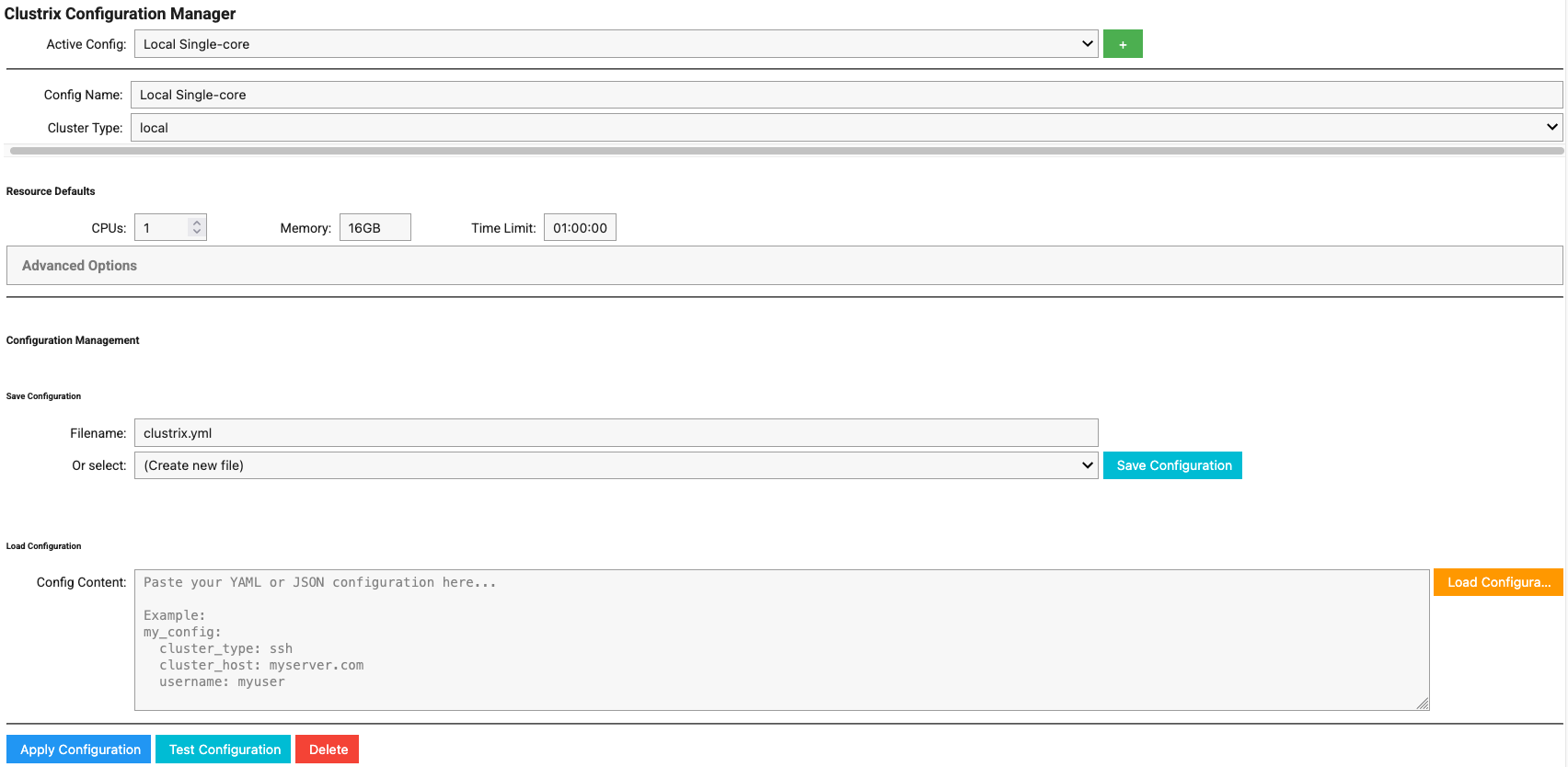
# When you run this cell, the widget will display with the default "Local Single-core" configuration:
# 
#
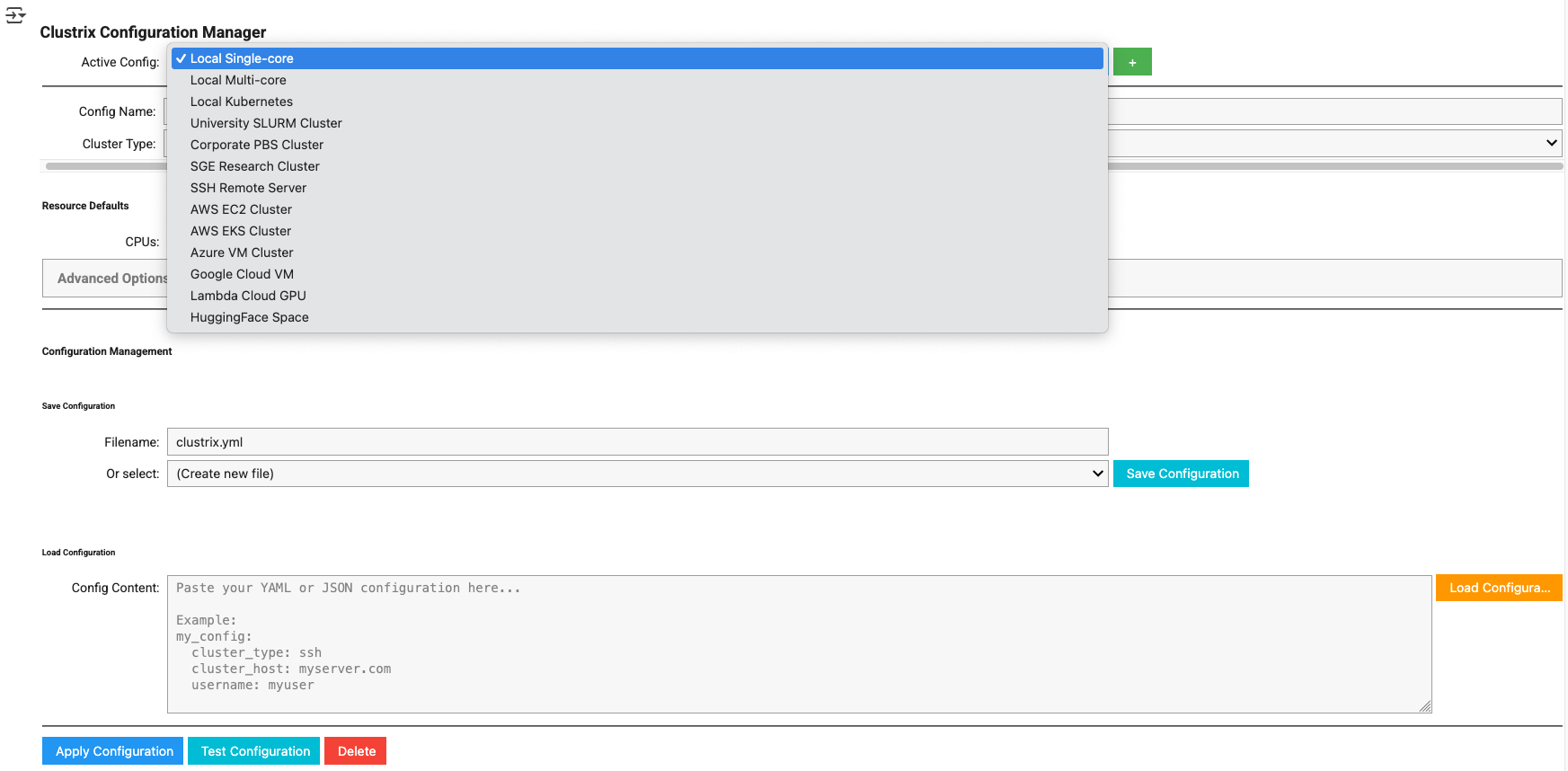
# The dropdown menu shows all available configuration templates:
# 
#
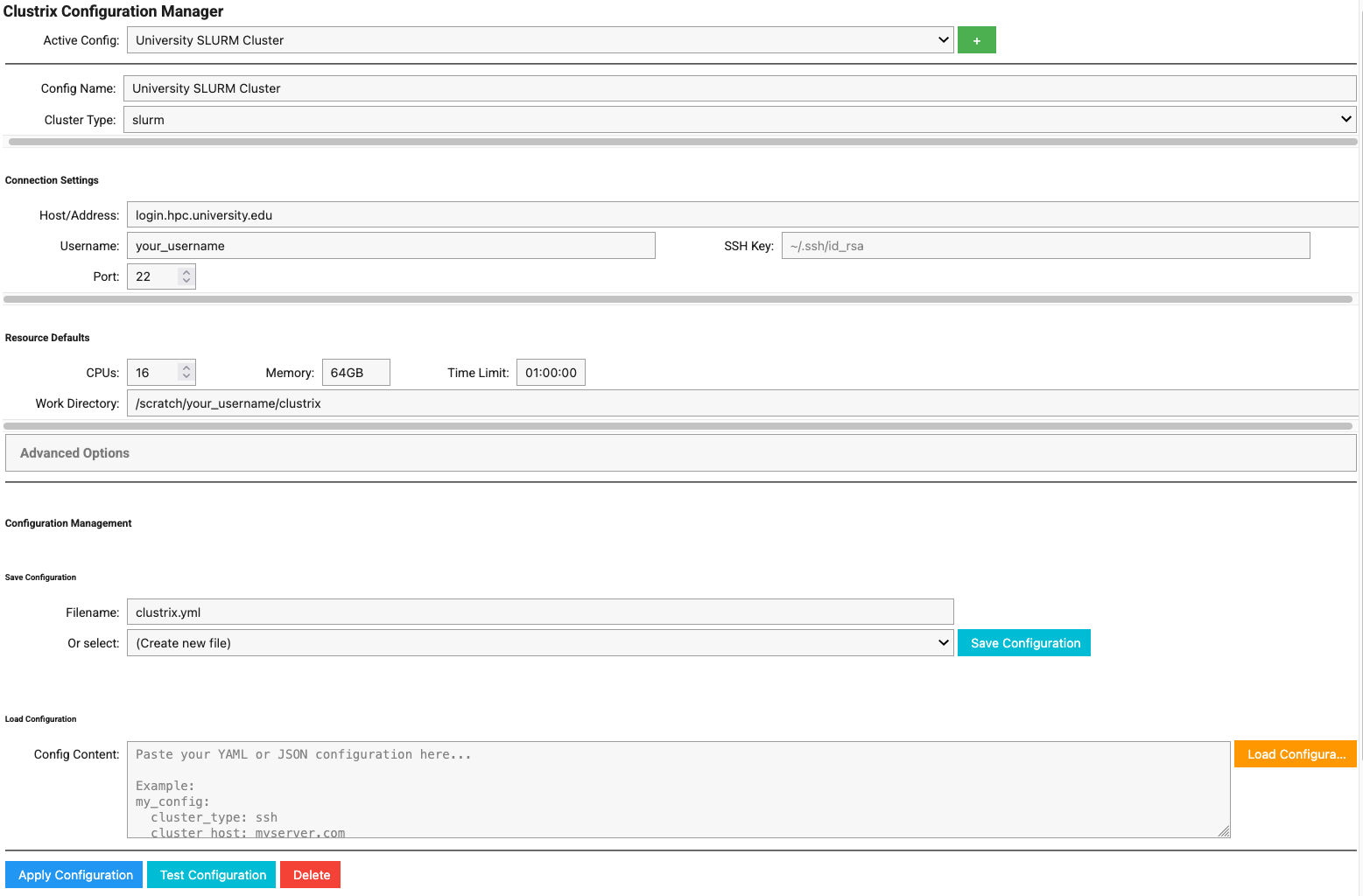
# Example SLURM cluster configuration with basic settings:
# 
#
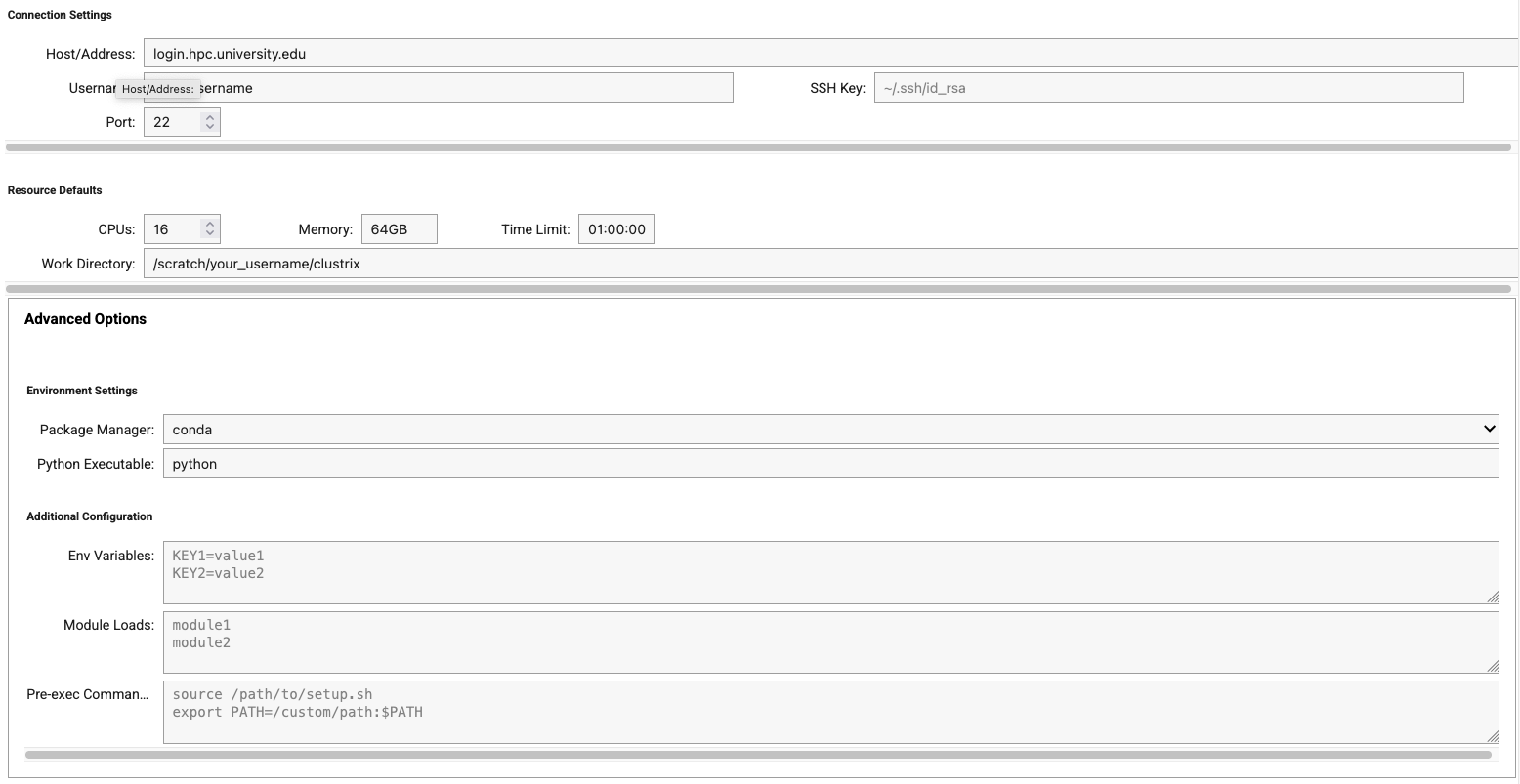
# Advanced settings reveal additional options:
# 
Widget Features
1. Configuration Selection
Use the dropdown to select between different configurations
Default configurations include local, AWS, GCP, Azure, SLURM, and Kubernetes options
2. Configuration Management
New Config: Create a new configuration
Delete Config: Remove the selected configuration
Apply Config: Apply the selected configuration to your current session
3. Configuration Fields
Name: Friendly name for the configuration
Description: Detailed description of the cluster
Cluster Type: local, ssh, slurm, pbs, sge, or kubernetes
Host: Hostname or IP address (for remote clusters)
Username: SSH username (for remote clusters)
SSH Key: Path to SSH private key
Work Dir: Remote working directory
Default Cores: Default number of CPU cores
Default Memory: Default memory allocation
Default Time: Default time limit
4. Save/Load Configurations
Save configurations to YAML or JSON files
Load configurations from files
Share configurations with team members
Cloud Provider Examples
The widget includes comprehensive support for cloud providers with dynamic field visibility and intelligent defaults.
Google Cloud Platform
When configuring GCP, only relevant fields are displayed:

Lambda Cloud GPU Instances
The widget provides specialized support for GPU-optimized Lambda Cloud instances:

Key Cloud Features
Dynamic Field Visibility: Only shows fields relevant to the selected provider
Auto-populated Dropdowns: Instance types, regions, and zones populated automatically
Provider-specific Options: Each cloud provider has tailored configuration options
Cost Monitoring: Built-in cost tracking for all cloud providers
Example: Using a Configuration
After applying a configuration using the widget, you can use it with the @cluster decorator:
[3]:
from clustrix import cluster
import numpy as np

@cluster(cores=4, memory="8GB")
def matrix_computation(size=1000):
    """Example computation that will run on the configured cluster."""
    A = np.random.rand(size, size)
    B = np.random.rand(size, size)
    C = np.dot(A, B)
    return np.mean(C)

# This will run on whatever cluster configuration is currently active
# result = matrix_computation(2000)
Programmatic Configuration
You can also check and modify configurations programmatically:
[4]:
# Check current configuration
current_config = clustrix.get_config()
print(f"Current cluster type: {current_config.cluster_type}")
print(f"Default cores: {current_config.default_cores}")
print(f"Default memory: {current_config.default_memory}")
Tips
Save your configurations to a file for easy sharing and version control
Use descriptive names for your configurations to easily identify them
Test configurations with small jobs before running large computations
Keep SSH keys secure and use appropriate file permissions
Document cluster-specific requirements in the description field